
True-shape nesting
Packs parts by their real outline, not their bounding box, for higher utilization.
Use it right inside CorelDRAW, Illustrator and AutoCAD. It nests parts by their true shape with any-angle rotation, parts inside holes, multiple sheet sizes and irregular remnants, then puts the result back on your canvas in one click. Built for laser cutting, acrylic, signage and sheet metal.

This is actual Smart Nesting output with no manual touch-up. Large parts interlock, small parts fill the gaps, and the first sheet reaches 85.7% utilization.
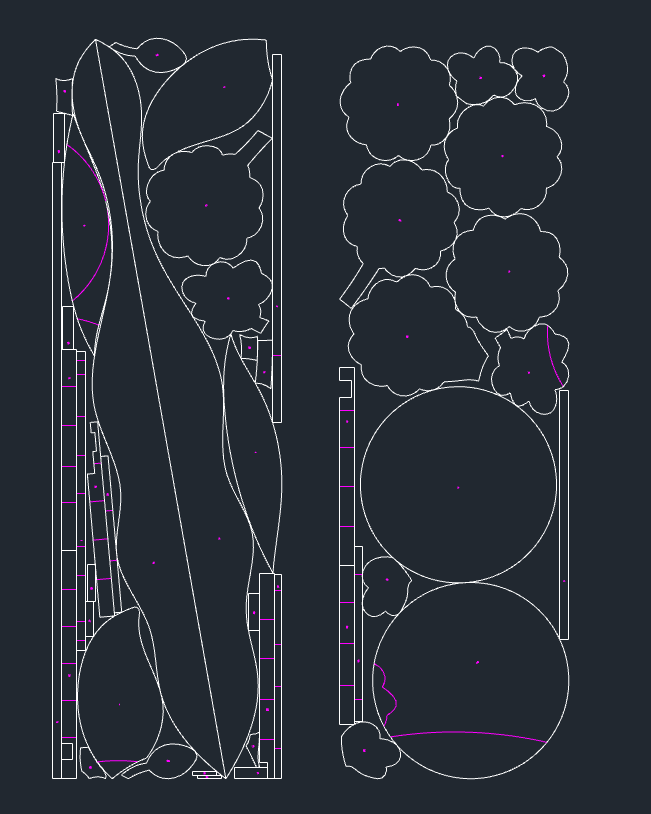
Not a simple grid. Smart Nesting works with the actual outline of each part and fills every gap it can.
Packs parts by their real outline, not their bounding box, for higher utilization.
Any angle, 90° steps or fixed direction to respect material grain.
Small parts drop into the holes and pockets of larger ones.
Flip parts when it gives a tighter layout.
Batch mode sets a quantity for every part so a whole order nests at once.
Add several sheet sizes with quantities, priority and order.
Use offcuts of any shape as sheets and keep nesting.
Maximize utilization, or minimize used width / height for sheets and rolls.
Uses multiple CPU cores with a time limit, so big jobs finish fast.
Add registration points or edge notches for accurate cutting.
Printed artwork rotates with its outline, ideal for print-and-cut.
Results go straight back to your drawing with sheet frames, fully undoable.
Select parts on the canvas and click “Acquire shapes”.
Enter sheet size, quantity, spacing and margin, or add remnants.
Choose rotation and goal; multi-core nesting does the rest.
Apply to the canvas and send it to the cutter.
Every edition includes Smart Nesting, plus tools made for that app.
Anywhere parts are cut from sheets, it saves material.
Nest wood, MDF and acrylic parts with less waste.
Letter faces, acrylic letters and signs, even odd shapes.
Nest parts in AutoCAD with micro-joints and marking.
Artwork follows its outline so prints line up with cuts.
Furniture panels and carvings with grain-aware rotation.
Leather, fabric and small gifts, reusing odd remnants.
Nesting runs on your own PC, so drawings never leave it and speed doesn't depend on the network.
CorelDRAW, Illustrator and AutoCAD share the same nesting engine and give the same results.
The nesting window switches between Chinese, English, Japanese and Korean.
From CorelDRAW X4 and AutoCAD 2007 to current releases, 32 and 64-bit.
A simple installer, and new features arrive through the built-in updater.
Reach us on WeChat, WhatsApp or email; we can help remotely with setup and issues.
CorelDRAW X4 and later (32 / 64-bit), AutoCAD 2007 and later (32 / 64-bit), and Adobe Illustrator CC. Contact us to confirm your exact version.
Rectangular layout only places bounding boxes and leaves big gaps. Smart Nesting works with the true outline, rotates parts, interlocks them and drops small parts into holes, so the same job uses less material.
Yes. Use “Acquire irregular sheet” to turn any offcut outline into a sheet and nest on it alongside standard sheets.
Yes. Switch to Batch mode, enter a quantity for each part in the list on the right, and add several sheet types.
Nesting is computed on your own PC and your drawings are never uploaded.
Yes. Message us on WeChat or WhatsApp for the installer and a trial license, then activate the full license when you're ready.
There is no online checkout. Contact us on WeChat, WhatsApp or by email and we'll recommend a plan and activate your license.
Yes. The nesting window supports Chinese, English, Japanese and Korean, the toolbar switches between Chinese and English, and we serve customers worldwide.
The plugin has a built-in updater that notifies you and upgrades in one click.
Yes. We build custom tools for specific industries and factory workflows. Get in touch to discuss.
Scanning our WeChat or WhatsApp code is fastest, or send an email. There is no online checkout; we handle every license personally.
 Scan with WeChat
 Scan to chat on WhatsApp